2 Minutes Away From Changing Content
Get your digital signage network live in minutes with these 6 simple steps.
-
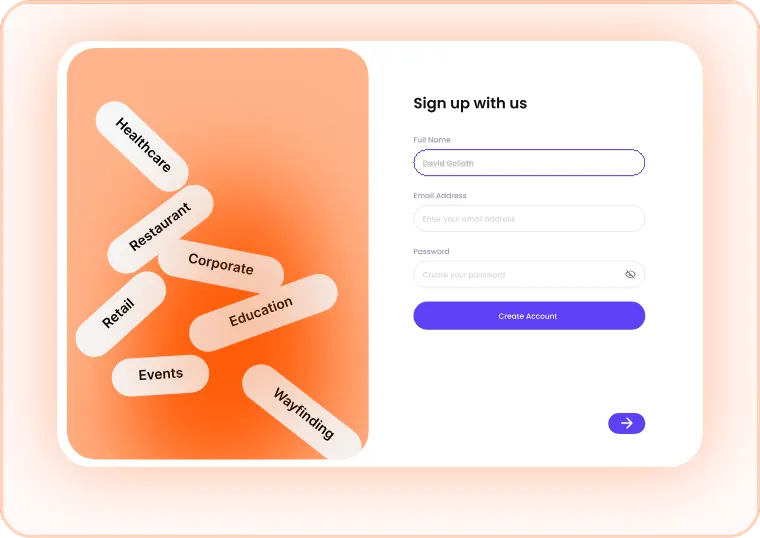
Create Your Imagine Account
Sign up to your digital signage CMS and configure your organisation, users and basic settings. This becomes your central dashboard for managing every screen.
-
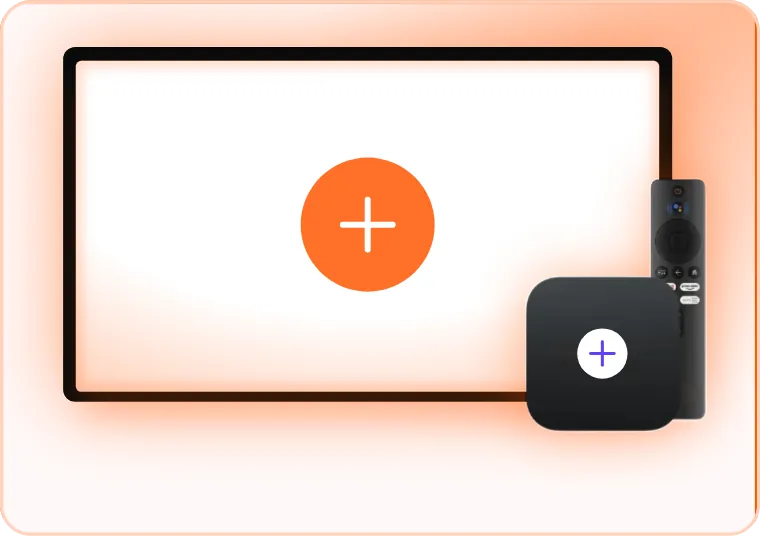
Prepare Your Hardware
Choose and install your commercial display or media player, then connect it to power and the internet.
-
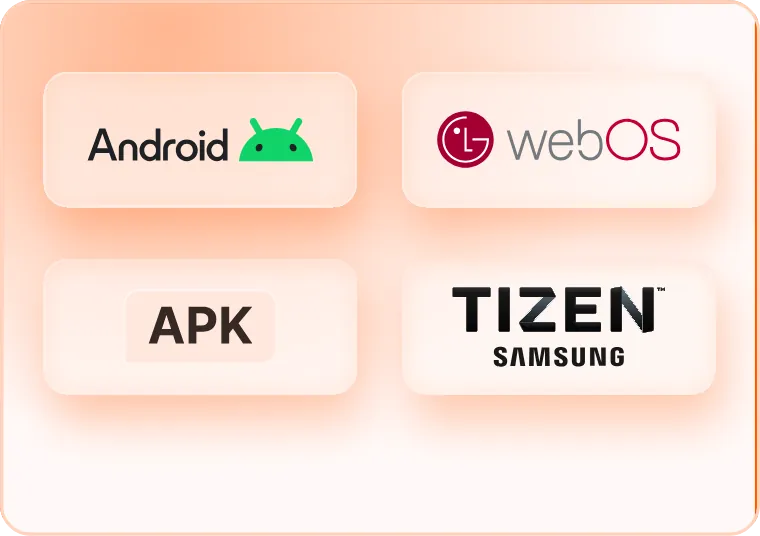
Install Imagine Software
Download and install the player app onto your Android device, or visit our download page for other OS versions. The installation typically takes just a few minutes.
-
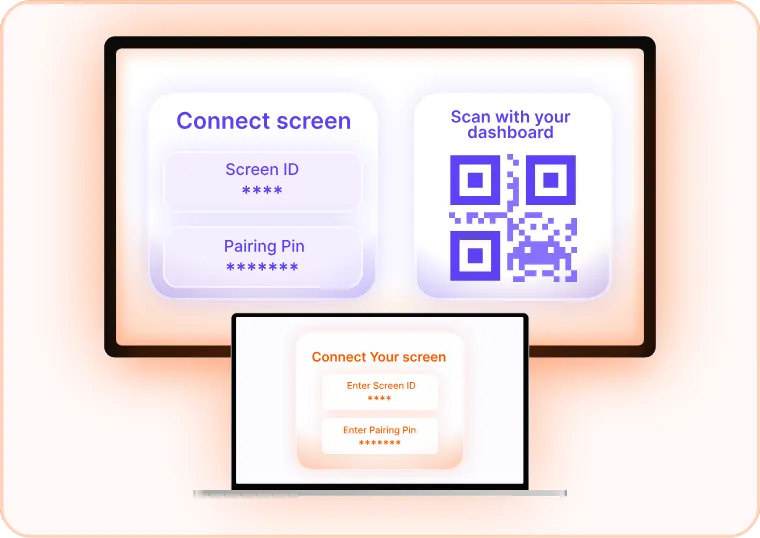
Link Your Screen
Once installed, open your dashboard, go to the Screens page and click "Add screen". Enter the pairing ID & code or scan the QR code to securely connect your player - your screen appears in the dashboard immediately.
-
Upload Your Content & Create a Playlist
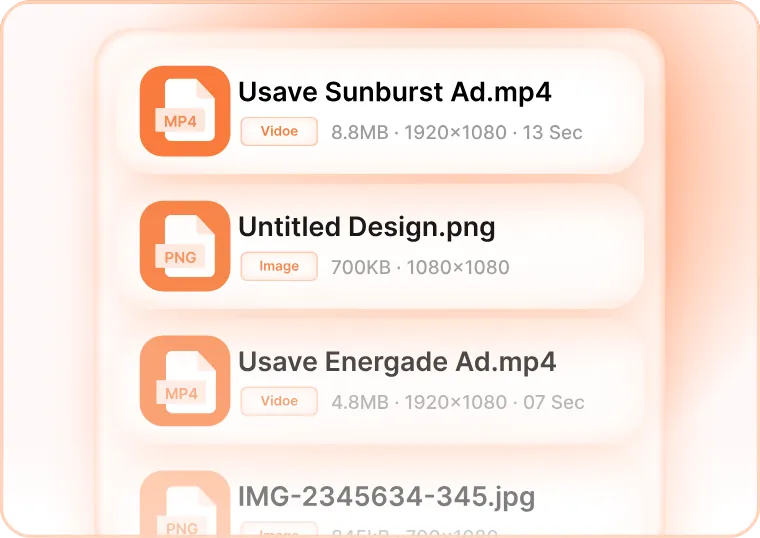
Open the Playlists page, upload your images and videos and arrange them into the timeline. Set durations, transitions and schedules, then publish.
-
Monitor & Go Live
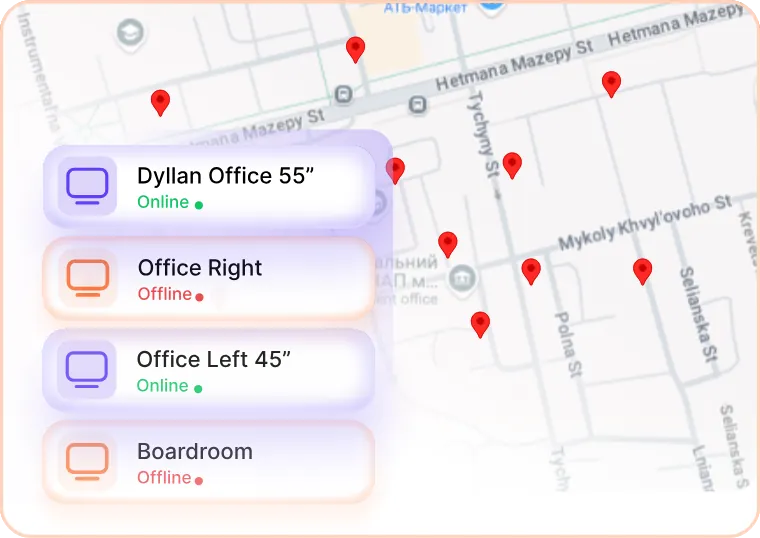
Confirm your content is playing correctly, then monitor screen status, view screenshots and schedule future content - updating from anywhere on desktop, tablet or mobile.
Ready to get started? Every screen, one dashboard
Join the businesses already running their screens on Imagine. Register in minutes, or book a demo and we'll show you around.
- Free plan for your first screen
- LG webOS & Android players
- Set up in minutes